Erase what your
photos give away
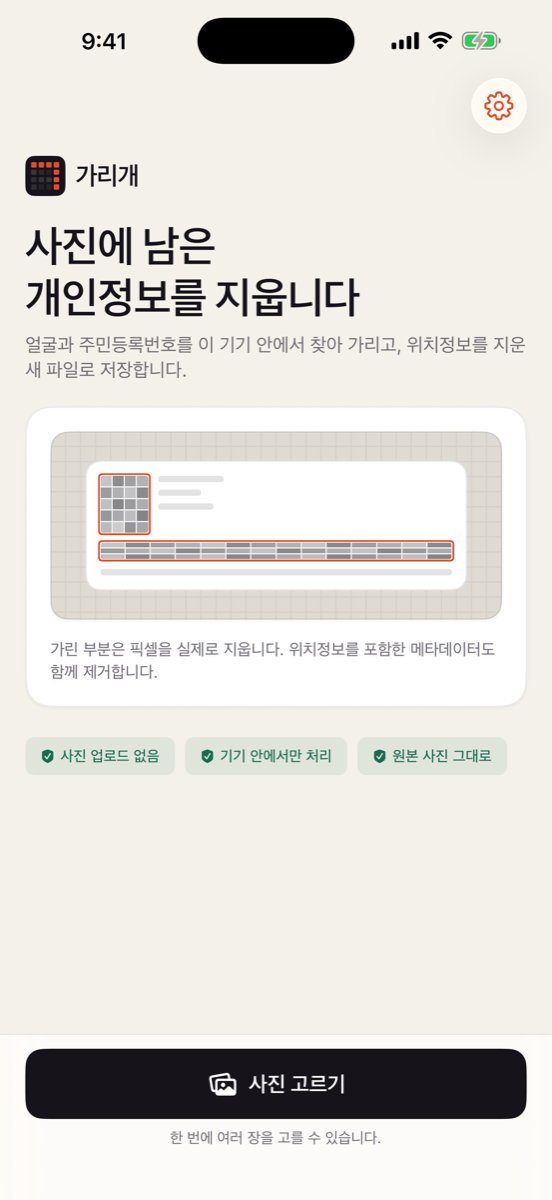
Garigae finds ID numbers, bank accounts, and faces on your iPhone, hides them irreversibly, and saves a new file with the location data stripped.
3 Korean-number scans a day
- iOS 17.0+
- 8.4 MB
- 4+
- Korean interface
Before you tap: Garigae is published on the Korean App Store only, and its interface is in Korean. The number formats it recognises — resident registration, business registration, Korean bank accounts and plates — are Korean. Face blurring and location stripping work on any photo, whatever the language.
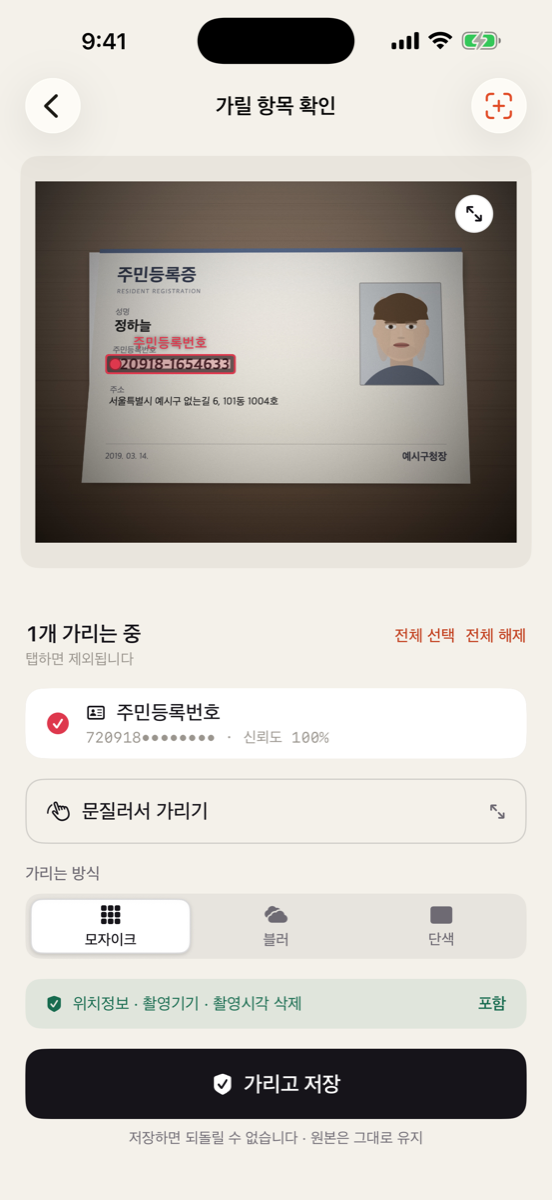
Resident registration no. · confidence 100%
720918
Once saved, nothing recovers what was under the mask. Your original photo is left untouched.
When you reach for it
One bad photo cannot
be taken back
Garigae does one thing: it filters a photo before you send it.
Secondhand sales
Sending an ID or a bank statement
The ID number and account number are hidden. What the buyer actually needs — the name and the face — is your call to keep.
Payment proof
Screenshotting a transfer
Account numbers are found by the words around them. Card numbers are masked only when they pass a Luhn check.
Social
Posting a photo of your child
Faces are covered and the coordinates go with them, so a photo taken outside your door does not become your address.
Work
Sharing a business card or document
Business registration numbers are checksum-verified. Phone numbers and email addresses are found too.
What it looks for
It knows Korean number formats
Where a number carries a checksum, the checksum has to match before anything is hidden. Numbers that merely look the right shape are left alone.
| Item | Verified by | Conditions and limits |
|---|---|---|
| Resident reg. no. | checksum | Lookalike digits are skipped |
| Business reg. no. | checksum | Only when the checksum matches |
| Card number | Luhn | 16 digits only — 15-digit Amex is skipped |
| Bank account | context | Bare digits with no bank name nearby can be missed |
| Face | frontal | Profiles and masked faces can be missed |
| Licence plate | pattern | Blurred or angled plates can be missed |
| Phone number | pattern | Korean mobile and area-code formats |
| pattern | Address shapes containing @ |
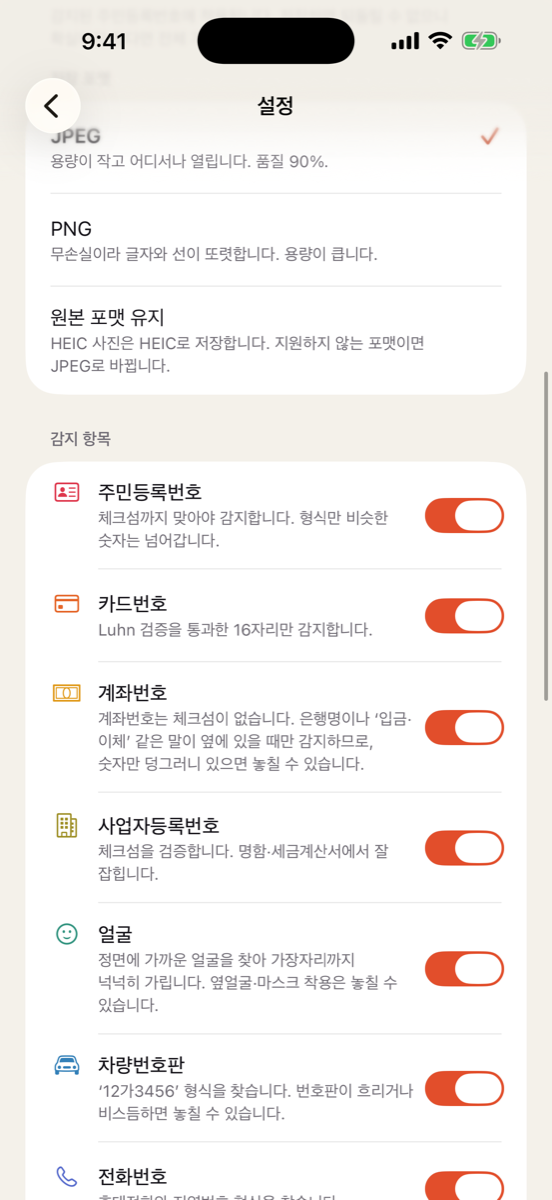
Anything you do not want scanned can be switched off in settings.
How it goes
Three taps, and it is done
Pick a photo
Choose from your library and the scan starts straight away. With Pro you can pick several at once.
Check what it found
Tap anything you would rather keep to drop it, and smear a finger over anything it missed. The masking style is chosen here too.
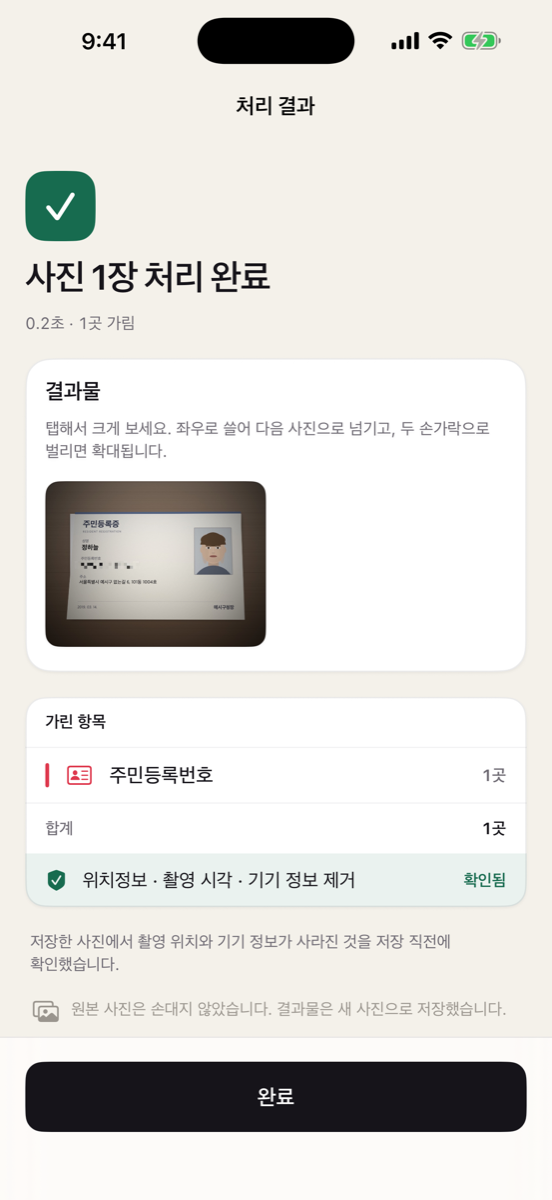
Save
The result is written as a new photo, and the location data is checked once more just before it is saved.
No undo
It erases rather than covers
The pixels under a mask are destroyed. Nothing is stored as a reversible layer or a sticker, so there is no route back to what was there.
And your original photo is never touched. Results are always written as a new file. The app asks only for permission to add photos, not to read your library.
What you cannot see
The place it was taken goes too
Photos carry coordinates, a timestamp, and the device that took them. Garigae removes those on save and verifies the removal just before writing. If that check fails, nothing is saved.
- GPS37.5665, 126.9780
- Captured2026:08:21 14:32:07
- DeviceiPhone 17 Pro
- Lensf/1.78 · 26mm
- Removal verifiedbefore save
On device only
Your photos are never uploaded
There is no photo-upload code in the app. There is no account and no sign-in. Text recognition, face detection, masking, and metadata removal all happen on your iPhone.
Works in Airplane Mode
Processing a photo needs no connection at all.
No account
Nothing to sign up for, so there is nothing of yours to hold.
One request, ever
A subscription status check. No photo goes with it.
Limits
Sometimes it misses
Korean account numbers carry no checksum, so they are only found when a bank name or a word like "transfer" sits beside them. Profiles and blurred plates can slip past. The app says the same thing in its own settings screen.
That is why you can smear a mask on by hand. Open the photo full screen, zoom in, and drag a finger across it. Tell us what was missed and the rules get better — support.
What Garigae is not
It is not a photo editor. No filters, no cropping, no collage. It hides things, and that is the whole app.
Price
Try it before you decide
Free
₩0
- One photo per run
- 3 Korean-number scans a day
- Faces and location data
Garigae Pro
₩29,000 / year
or ₩2,200 / week
- Several photos at once
- Unlimited Korean-number scans
- No watermark
Prices are charged in Korean won. Manage or cancel any time in your App Store account settings; cancel during the trial and you are not billed.
Questions
Answered up front
Can a mask be undone?
No. The pixels are genuinely destroyed, so once a photo is saved there is no recovering what was underneath. Your original photo stays as it was — results are always saved as a new file.
Do my photos get uploaded?
No. The app contains no upload code. It works the same in Airplane Mode. The only request it ever makes is a subscription status check, and no photo goes with it.
Is the location data really gone?
Yes. The whole of the EXIF metadata is stripped, GPS coordinates included, and the removal is verified just before the file is written. If that check fails, the save is abandoned rather than completed.
It hid the wrong thing
Tap that item in the detection list to drop it. Everything that will be hidden is shown on screen before you save.
How do I cancel?
In iOS Settings ▸ your Apple Account ▸ Subscriptions. Apple does not allow cancelling from inside the app. On a new device, use "Restore Purchases" on the paywall.
Can I hide only ID numbers?
Yes. Each category can be switched on or off in Settings, so leaving only resident registration numbers on means only those get hidden. To drop one just for a single photo, tap that item in the detection list.
What about passports, driving licences, and official documents?
A resident registration number printed on them is found and hidden. There is no rule for passport or licence numbers themselves — brush over those by hand in the editor. Regions you mark yourself are always hidden, whatever the settings say.
Can I blur only faces?
Yes. Leave faces on and everything else off. Detection looks for front-facing faces, so a profile or a masked face can be missed — check the screen once before saving.
Is mosaic the only style?
There are three: mosaic, blur, and solid fill. Mosaic is the default; solid is the safest because there is nothing left to reconstruct. All three genuinely destroy the pixels.
Does it hide licence plates?
Yes, plates are one of the detected categories. A blurred or steeply angled plate can be missed, so check the screen once before saving.
What about names and addresses on receipts and parcel labels?
Names and addresses are not detected. Things with a fixed format — a card number on a receipt, a phone number on a label — are found, but a person's name or street address has no format to match. Brush over those by hand in the editor.
Which devices does it run on?
iPhone and iPad, on iOS 17 or later. It is available on the Korean App Store only, and the interface is in Korean.
More on the support page.